Test Results
Simnet View
Requested By: Ms. Jami Cotler
Lecturer of Computer Science
Computer Science Department
Dr. Timoth C. Lederman
Professor of Computer Science
Computer Science Department
InnoSmart Technologies
Prepared by: Kevin Decker
Shane
Leighton
James
Mayben Jr.
Caitlin
Sheil
Andrey
Taran
April 28, 2008
Table of Contents
Simnet View
I. Testing Requirements .
. . . . .
. . .
. . .
. . .
. . .
. . .
. . . . 2
1.1 Testing Plan Identifier. . . . . . . . . . . . . . . . . . . . . . . 2
1.2 Introduction . . . . . . . . . . . . . . . . . . . . . . . . . . . 2
1.3 System Test . . . . . . . . . . . . . . . . . . . . . . . . . . 2
1.4 Approach to Testing. . . . . . . . . . . . . . . . . . . . . . . . 3
1.5 Functional Requirements Inventory . . . . . . . . . . . . . . . . . 3
1.6 Non-Functional Requirements Inventory . . . . . . . . . . . . . . . 5
1.7 Exception Handling To Test. . . . . . . . . . . . . . . . . . . . . 6
1.8 Deliverables. . . . . . . . . . . . . . . . . . . . . . . . . . . 6
II. Unit Tests
. . .
. . .
. . .
. . .
. . .
. . .
. . .
. . .
. . .
. . . 7
Introduction . . . . . . . . . . . . . . . . . . . . . . . . . . . 7
Test Directory. . . . . . . . . . . . . . . . . . . . . . . . . . . 7
2.1 Login. . . . . . . . . . . . . . . . . . . . . . . . . . . . . 8
2.2 Welcome Screen: Administrator. . . . . . . . . . . . . . . . . . 10
2.3 Welcome Screen: Faculty. . . . . . . . . . . . . . . . . . . . . 12
2.4 Forgot Password. . . . . . . . . . . . . . . . . . . . . . . . . 14
2.5 View Reports: Administrator . . . . . . . . . . . . . . . . . . . 16
2.6 View Reports: Faculty. . . . . . . . . . . . . . . . . . . . . . 20
2.7 Class Data: Administrator . . . . . . . . . . . . . . . . . . . . . 23
2.8 Class Data: Faculty . . . . . . . . . . . . . . . . . . . . . . . 26
2.9 Student Data Summary: Administrator . . . . . . . . . . . . . . . . 28
2.10 Student Data Summary: Faculty . . . . . . . . . . . . . . . . . . 31
2.11 Student Data: Administrator Screen . . . . . . . . . . . . . . . . 34
2.12 Student Data: Faculty Screen . . . . . . . . . . . . . . . . . . . 37
2.13 Manage Files . . . . . . . . . . . . . . . . . . . . . . . . . . 40
2.14 Manage Accounts . . . . . . . . . . . . . . . . . . . . . . . . 44
2.15 Change Password . . . . . . . . . . . . . . . . . . . . . . . . 46
III. Integration/Regression Tests .
. . .
. . .
. . .
. . .
. . .
. . .
. . 48
3.1 Integration. . . . . . . . . . . . . . . . . . . . . . . . . . . . . . 48
3.2 Regression . . . . . . . . . . . . . . . . . . . . . . . . . . . . . . 50
IV.
Appendix . .
. . . . .
. . .
. . .
. . .
. . .
. . .
. . .
. . .
. . 51
4.1 Glossary of Terms. . . . . . . . . . . . . . . . . . . . . . . . . . . 51
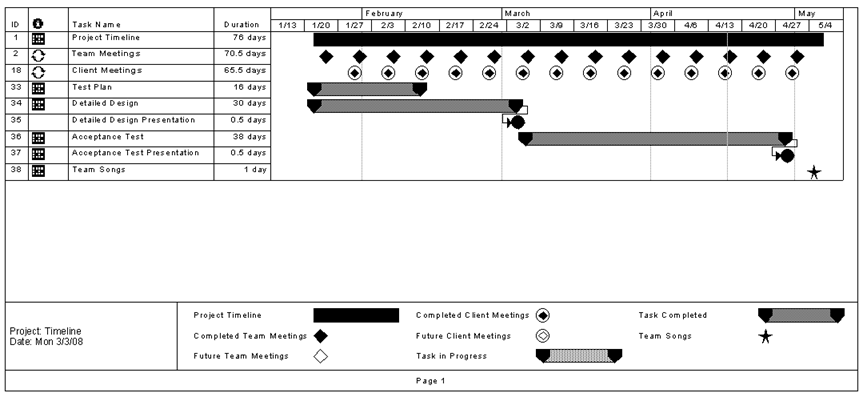
4.2 Gantt Chart (Timeline) . . . . . . . . . . . . . . . . . . . . . . . . . 53
This document is the final test document used to describe the testing requirements, in detail, for Simnet View. These are the requirements that were tested for, and met, in order for Simnet View to be considered fully functional. As the project development neared completion, the requirements were fulfilled, and some items were edited.
1.2. Introduction
This document is the overview of the test plan, labeled version 1.1. The goal of the test plan is to review the various functions and procedures of Simnet View, and test to make certain that each aspect is functioning properly. Each of the previous documents have outlined the steps taken to ensure that proper steps were taken, and followed properly, to create the software, and reduce the amount of testing that would be necessary. This plan covers all necessary testing of internal software components of the Simnet View software.
This
section will provide a list of items that are able to be physically tested,
unlike the non-functional requirements which are more subjective, and will be
discussed later. This portion of the testing will require the most time, and
effort not only from the testing team, but from the developing team to create
and fulfill the requirements specified by our client, while trying to keep all
modules independent and self sustaining.
The following is a list of Functional
Requirements to be established, and tested in full:
• Simnet View must be web based and viewable from anywhere on campus or in
the world.
• The web-application must work with all major browsers, including but
not
limited to:
◦ Internet Explorer 7.0 or higher
◦ Mozilla Firefox 2.0 or higher
• Users must be able to sign into the system securely.
• Allow users to change their personal password.
• Allow administrators to change any users’ password.
• Allow the user to view Simnet View reports on screen or in print.
• Allow the administrator to manage Simnet result
files.
• Allow the administrator to generate new Simnet View results.
• All links displayed within the program must be valid and working.
Along with these requirements, we also
concentrated on testing all separate units that compose these requirements.
These unit tests are included later on in this document.
Our
approach was to start with the unit tests provided in this document, then move
outwards ensuring that full modules worked correctly, and then looked at
integration testing of these modules to ensure the system is working properly. The
goal of our system is to allow users to look at previous Simnet test results
and be able compare and analyze them.
Throughout
the entire testing process our team went back and corrected any problems that occurred. Regression testing was not needed because
there were very little changes and problems that occured. As problems arose, we were able to correct
them accordingly.
In
order to test certain aspects of our code, other parts needed to be implemented
first. For example, when testing a
user’s change to their profile, we needed to implement the actual profile
itself, with fields that can then be changed later on to fit the users’ needs.
As
the development continued, we discussed our progress throughout the testing
stages of our software development. We
asked our clients what they would like their software to do if a problem or a
special circumstance arises. Maintaining
open lines of communication between our team and our clients proved to be very
important so that we could ensure that the product that is produced is the
product that was desired.
1.5 Functional Requirements
Inventory
In order to ensure that the system as a whole passed testing, we started with each individual piece. The following is a check list of the major requirements, some of which are based on screens, to ensure that each item has either passed of failed. In order for an item to pass, it underwent its specific unit test as provided.
The following is the list of the major requirements that were tested:
Welcome Screen
o Yes No
Change Password Screen
o Yes No
Administrator:
Manage Files Screen
Faculty:
Student Data Screen
Administrator:
Student Data Screen
*Prerequisite:
Faculty: Student Data Screen must be
fully functioning
Faculty:
Student Summary Screen
Administrator:
Student Summary Screen
*Prerequisite: Faculty: Student Summary Screen must be fully functioning
Faculty:
Class Data Screen
Administrator:
Class Data Screen
*Prerequisite: Faculty: Class Data Screen must be fully functioning
1.6 Non-Functional Requirements Inventory
The
testing team has also made sure that the non-functional requirements have been
met. These requirements are not easily tested, as some of the requirements are
subjective in nature. The following is a list of items that has been carefully
reviewed and tested in the best manner possible.
Simnet
View must be universal. This system can run on the following platforms:
Windows, Macintosh, and *NIX systems. It is also
be accessible through Microsoft Internet Explorer 7.0 or better and Mozilla
Firefox 2.0 or better. The Simnet View
program is designed for a web browser screen resolution of 1024 x 768.
The
Simnet View application must be efficient and not cause a slow down on whatever
server hosts it. It must be able to quickly access and supply data to and
from a database in order to ensure that users are not kept waiting.
The
Simnet View application must be secure. The system should only be
accessible to limited user accounts and the administrator accounts.
Unregistered users must not be able to enter the application in any way.
The Simnet View application
code must be readable, understandable, and extensible. Future developers should
be able to easily interpret code to know what it is doing and why in order to
ease future development and expansion of the capabilities of the Simnet View
application.
1.7 Exception Handling To Test
While using the Simnet View
software there may be some circumstances that may cause errors that weren’t predicted. The Siment View software must be able to
handle some of these types of errors:
User does not provide
all required information required for logging in:
The user must complete all required fields indicated by a red highlight.
There will also be a message telling the user that they must provide the proper
fields.
User tries to request
data without selecting fields:
The user must complete all choose fields indicated by a red highlight.
There will also be a message telling the user that they must provide the proper
fields in order for the request to be processed.
User tries to copy /
delete information without selection of a file:
A message will appear prompting the user to select a file before choosing
one of the actions to be performed on a file.
User tries to change
password and does not enter the correct information:
A message will appear prompting the user to make sure that the right
information was entered for a password change.
1.8. Deliverables
The deliverables for
Simnet View include a CD with all of our documents as well as all of the files
for the team website and finished application. We will also deliver a hard copy
of all documents and the directions on how to use Simnet View.
Unit testing is a procedure used to validate that individual units of an application are working properly. A unit is the smallest testable part of the application. The goal of unit testing is to isolate each part of the program and show that the individual parts are correct. Below is a table showing that each individual unit passed. They are then broken down to show the specifics of each unit.
|
Unit Test
Catalog |
||
|
Test Result |
Test Number |
Unit Test Name |
|
P
|
1 |
|
|
P
|
2 |
|
|
P
|
3 |
|
|
P
|
4 |
|
|
P
|
5 |
|
|
P
|
6 |
|
|
P
|
7 |
|
|
P
|
8 |
|
|
P
|
9 |
|
|
P
|
10 |
|
|
P
|
11 |
|
|
P
|
12 |
|
|
P
|
13 |
|
|
P |
14 |
|
|
P |
15 |
|
|
|
|
|
|
P = Pass F = Fail |
|
|
|
Num |
Name |
Description |
State Before Test |
State After Test |
Input |
Steps to be Executed |
Expected Output |
Comments |
Pass/Fail |
|
1.0 |
Load Page |
Page loads properly |
Simnet View Load Screen |
Simnet View Login Screen |
None |
None |
Screen displays login screen properly in web browser |
None |
Pass |
|
1.2 |
Login: Invalid Attempt |
No text within username/ password fields |
Simnet View Login Screen |
Simnet View Login Screen |
Username field = “ ” Password field = “ ” |
Validate username and password fields have text
within them |
Notice of Invalid Login Attempt: Please enter correct credentials |
None |
Pass |
|
1.3 |
Login: Password w/o Username |
Login Button clicked and released with text only
within password field |
Simnet View Login Screen |
Simnet View Login Screen |
Username field = “ ” Password field = “password text ” |
Validate username and password fields have text
within them |
Notice of Invalid Login Attempt: Please enter correct credentials |
None |
Pass |
|
1.4 |
Login:
Username w/o password |
Login Button clicked and released with text only
within username field |
Simnet View Login Screen |
Simnet View Login Screen |
Username field = “username text” Password field = “ ” |
Validate username and password fields have text
within them |
Notice of Invalid Login Attempt: Please enter correct credentials |
None |
Pass |
|
1.5 |
Login: Administrator Recognized Successful Attempt |
Login Button clicked and released with text within username / password fields |
Simnet View Login Screen |
Simnet View Administrator Welcome Screen |
Username field = “admin1” Password field = “admin1” |
Validate administrator username and password fields are recognized
within database |
Screen transfers to Simnet View Administrator
Welcome Screen properly within web browser |
None |
Pass |
|
1.6. |
Login: Faculty User Recognized Successful Attempt |
Login Button clicked and released with text within username / password fields |
Simnet View Login Screen |
Simnet View Faculty User Welcome Screen |
Username field = “Faculty username text” Password field = “Faculty user password text” |
Validate Faculty User username and password fields are recognized
within database |
Screen transfers to Simnet View Administrator
Welcome Screen properly within web browser |
None |
Pass |
|
1.7 |
Login: Un-Recognized Successful Attempt |
Login Button clicked and released with text within username / password fields but
fields are not recognized within database |
Simnet View Login Screen |
Simnet View Login Screen |
Username field = “username text” Password field = “password text” |
Validate
username and password fields are recognized within database |
Notice of Invalid Login Attempt: Please enter valid
credentials |
None |
Pass |
|
1.8 |
Forgot Password |
Forgot Password Link is clicked and released |
Simnet View Login Screen |
Simnet View Login Screen |
None |
None |
Pop-up Window:
Forgot Password Screen |
None |
Pass |
|
Num |
Name |
Description |
State Before Test |
State After Test |
Input |
Steps to be Executed |
Expected Output |
Comments |
Pass/Fail |
|
2.1 |
Load Page |
Welcome Screen Page loads properly |
Simnet View Login Screen |
Simnet View Administrator Welcome Screen |
None |
Redirected to Administrator Welcome Screen |
Screen displays Administrator Welcome screen
properly in web browser |
None |
Pass |
|
2.2 |
Home |
Home Link is clicked and released |
Simnet View Administrator Welcome Screen |
Simnet View Administrator Welcome Screen |
None |
Redirected to Administrator Welcome Screen |
Screen displays Administrator Welcome screen
properly in web browser |
None |
Pass |
|
2.3 |
Manage Account / Password |
Manage Account / Password link is clicked and
released |
Simnet View Administrator Welcome Screen |
Simnet View Administrator: Manage Accounts Screen |
None |
Redirected to Administrator: Manage Accounts Screen |
Screen displays Administrator: Manage Accounts Screen
properly in web browser |
None |
Pass |
|
2.4 |
Manage Files |
Manage Files link is clicked and released |
Simnet View Administrator Welcome Screen |
Simnet View Administrator Manage Files Screen |
None |
Redirected to Administrator: Manage Files Screen |
Screen displays Administrator Manage Files Screen
properly in web browser |
None |
Pass |
|
2.5 |
Logout |
Logout link is clicked and released |
Simnet View Administrator Welcome Screen |
Simnet View Login Screen |
None |
Redirected to Simnet View Login Screen |
Screen displays Login screen properly in web browser |
None |
Pass |
|
2.6. |
View By: Year “X” |
Item “X” is selected under “Year” heading within
“View By” menu |
Simnet View Administrator Welcome Screen |
Administrator View Reports Screen |
Item selection under Year heading = “X” |
Redirected to Administrator: View Reports Screen |
Screen displays sorted available files by Year: “X”
properly in web browser |
None |
Pass |
|
2.7 |
View By: Session “Y” |
Item “Y” is selected under “Session” heading within
“View By” menu |
Simnet View Administrator Welcome Screen |
Administrator View Reports Screen |
Item selection under Session heading = “Y” |
Redirected to Administrator: View Reports Screen |
Screen displays sorted available files by Session:
“Y” properly in web browser |
None |
Pass |
|
2.8 |
View By: Course “Z” |
Item “Z” is selected under “Course” heading within
“View By” menu |
Simnet View Administrator Welcome Screen |
Administrator View Reports Screen |
Item selection under Course heading = “Z” |
Redirected to Administrator: View Reports Screen |
Screen displays sorted available files by Course:
“Z” properly in web browser |
None |
Pass |
|
2.9 |
View By: Section “A” |
Item “A” is selected under “Section” heading within
“View By” menu |
Simnet View Administrator Welcome Screen |
Administrator View Reports Screen |
Item selection under Section heading = “A” |
Redirected to Administrator: View Reports Screen |
Screen displays sorted available files by Section:
“A” properly in web browser |
None |
Pass |
|
Num |
Name |
Description |
State Before Test |
State After Test |
Input |
Steps to be Executed |
Expected Output |
Comments |
Pass/Fail |
|
3.1 |
Load Page |
Welcome Screen Page loads properly |
Simnet View Login Screen |
Simnet View Faculty User Welcome Screen |
None |
Redirected to Faculty User Welcome Screen |
Screen displays Faculty User Welcome screen properly
in web browser |
None |
Pass |
|
3.2 |
Home |
Home Link is clicked and released |
Simnet View Faculty User Welcome Screen |
Simnet View Faculty User Welcome Screen |
None |
Redirected to Faculty User Welcome Screen |
Screen displays Faculty User Welcome screen properly
in web browser |
None |
Pass |
|
3.3 |
Change Password |
Change Password link is clicked and release |
Simnet View Faculty User Welcome Screen |
Simnet View Faculty: Change Password Screen |
None |
Redirected to Faculty: Change Password Welcome Screen |
Screen displays Faculty: Change Password screen properly in web browser |
None |
Pass |
|
3.4 |
Logout |
Logout link is clicked and released |
Simnet View Faculty User Welcome Screen |
Simnet View Login Screen |
None |
Redirected to Simnet View Login Screen |
Screen displays Login screen properly in web browser |
None |
Pass |
|
3.5 |
View By: Year “X” |
Item “X” is selected under “Year” heading within
“View By” menu |
Simnet View Faculty User Welcome Screen |
Faculty View Reports Screen |
Item selection under Year heading = “X” |
Redirected to Faculty: View Reports Screen |
Screen displays sorted available files by Year: “X”
properly in web browser |
None |
Pass |
|
3.6 |
View By: Session “Y” |
Item “Y” is selected under “Session” heading within
“View By” menu |
Simnet View Faculty User Welcome Screen |
Faculty View Reports Screen |
Item selection under Session heading = “Y” |
Redirected to Faculty: View Reports Screen |
Screen displays sorted available files by Session:
“Y” properly in web browser |
None |
Pass |
|
3.7 |
View By: Course “Z” |
Item “CSIS 010” is selected under “Course” heading
within “View By” menu |
Simnet View Faculty User Welcome Screen |
Faculty View Reports Screen |
Item selection under Course heading = “CSIS 010” |
Redirected to Faculty: View Reports Screen |
Screen displays sorted available files by Course:
CSIS 010 properly in web browser |
None |
Pass |
|
3.13 |
View By: Section “A” |
Item “A” is selected under “Section” heading within
“View By” menu |
Simnet View Faculty User Welcome Screen |
Faculty View Reports Screen |
Item selection under Section heading = “A” |
Redirected to Faculty: View Reports Screen |
Screen displays sorted available files by Section:
“A” properly in web browser |
None |
Pass |
|
Num |
Name |
Description |
State Before Test |
State After Test |
Input |
Steps to be Executed |
Expected Output |
Comments |
Pass/Fail |
|
4.1 |
Load Pop-up Window |
Pop-up window loads properly |
Simnet View Login Screen |
Simnet View Login Screen |
None |
None |
Screen displays Pop-Up Window information properly in web browser |
None |
Pass |
|
4.2 |
Forgotten Password: Invalid Attempt |
No datum within any
field when Submit button is clicked and released |
Simnet View Login Screen |
Simnet View Login Screen |
Your Name =” ” Username = “ ” Desired Password = “ ” Retype Desired Password = “ ” E-mail = “ ” |
Validate fields
do not have text within them |
Notice of Invalid Attempt: Please enter datum
into all required fields |
None |
Pass |
|
4.3 |
Invalid username |
Username datum field is not recognized by database
when Submit button is clicked and release |
Simnet View Login Screen |
Simnet View Login Screen |
Username = “username text” |
Validate username text is not in the database |
Notice of Invalid Attempt: Please enter valid
username |
None |
Pass |
|
4.4 |
Password non-match |
Password and Retype Password Fields do not Match |
Simnet View Login Screen |
Simnet View Login Screen |
New Password = “password text ” Retype Password = “passWORD text” |
Validate password datum and retype password datum
fields match (case sensitive) |
Notice of Invalid Attempt: Please make sure password
fields match |
None |
Pass |
|
4.5 |
Invalid email address |
E-mail field does not contain character “@” |
Simnet View Login Screen |
Simnet View Login Screen |
E-mail = johndoe siena.edu |
Validate e-mail field matches regular expression |
Notice of Invalid Attempt: Please make sure email
field contains “@” character |
None |
Pass |
|
4.6 |
Clear |
Clear button is clicked and released |
Simnet View Login Screen |
Simnet View Login Screen |
None |
Clear all fields within window |
Screen displays original Pop-Up Window
information properly in web browser |
None |
Pass |
|
4.7 |
Forgotten Password: Successful Attempt |
Username field is recognized within database,
password fields match, and valid e-mail address field when Submit button is
clicked and released |
Simnet View Login Screen |
Simnet View Login Screen |
Username = “username” New Password = “password ” Retype Password = “password” E-mail = “johnDoe@siena.edu” |
Validate information within all fields meet
requirements |
E-mail containing data from window is sent to both
administrators for verification |
None |
Pass |
|
Num |
Name |
Description |
State Before Test |
State After Test |
Input |
Steps to be Executed |
Expected Output |
Comments |
Pass/Fail |
|
5.1 |
Load Page |
Administrator: View Reports Screen loads properly |
Simnet View Administrator Welcome Screen |
Administrator: View Reports Screen |
None |
Redirected to Administrator: View Reports Screen |
Screen displays Administrator: View Reports Screen
properly in web browser |
None |
Pass |
|
5.2 |
Home |
Home Link is clicked and released |
Administrator: View Reports Screen |
Simnet View General User Welcome Screen |
None |
Redirected to General User Welcome Screen |
Screen displays General User Welcome screen properly
in web browser |
None |
Pass |
|
5.3 |
Manage Account/ Password |
Manage Account/ Password link is clicked and release |
Administrator: View Reports Screen |
Simnet View Administrator: Manage Account Screen |
None |
Redirected to Administrator: Manage Account Screen |
Screen displays Administrator: Manage Account/
Password screen properly in web
browser |
None |
Pass |
|
5.4 |
Logout |
Logout link is clicked and released |
Administrator: View Reports Screen |
Simnet View Login Screen |
None |
Redirected to Simnet View Login Screen |
Screen displays Login screen properly in web browser |
None |
Pass |
|
5.5 |
View By: Year “X” |
Item “X” is selected under “Year” heading within
“View By” menu |
Administrator: View Reports Screen |
Administrator: View Reports Screen |
Item selection under Year heading = “X” |
Redirected to Administrator: View Reports Screen |
Screen displays sorted available files by Year: X
properly in web browser |
None |
Pass |
|
5.6 |
View By: Session “Y” |
Item “Y” is selected under “Session” heading within
“View By” menu |
Administrator: View Reports Screen |
Administrator View Reports Screen |
Item selection under Session heading = “Y” |
Redirected to Administrator: View Reports Screen |
Screen displays sorted available files by Session:
“Y” properly in web browser |
None |
Pass |
|
5.7 |
View By: Course “Z" |
Item “Z” is selected under “Course” heading within
“View By” menu |
Administrator: View Reports Screen |
Administrator View Reports Screen |
Item selection under Course heading = “Z” |
Redirected to Administrator: View Reports Screen |
Screen displays sorted available files by Course:
“Z” properly in web browser |
None |
Pass |
|
5.8 |
View By: Section: “A” |
Item “A” is selected under “Section” heading within “View By” menu |
Administrator: View Reports Screen |
Administrator View Reports Screen |
Item selection under Section heading = “A” |
Redirected to Administrator: View Reports Screen |
Screen displays sorted available files by Section:
“A” properly in web browser |
None |
Pass |
|
5.9 |
View By: Year: “X” Session: “Y” |
Items “X” and “Y” are selected under “Year” and
“Session” headings within “View By” menu |
Administrator: View Reports Screen |
Administrator View Reports Screen |
Item selection under Year heading = “X” and under Session heading = “Y” |
Redirected to Administrator: View Reports Screen |
Screen displays sorted available files by Year: “X”
and Session: “Y” properly in web browser |
None |
Pass |
|
5.10 |
View By: Year: “X” Session: “Y” Course: “Z” |
Items “X”, “Y”, “Z” are selected under “Year”,
“Session”, and “Course” headings within “View By”
menu |
Administrator: View Reports Screen |
Administrator View Reports Screen |
Item selection under Year heading = “X” ; under Session heading = “Y”; under Course heading = “Z” |
Redirected to Administrator: View Reports Screen |
Screen displays sorted available files by Year:
“X”, Session: “Y”, and Course: “Z”
properly in web browser |
None |
Pass |
|
5.11 |
View By: Year: “X” Session: “Y” Course: “Z” Section: “A” |
Items “X”, “Y”, “Z”, “A” are selected under “Year”,
“Session”, “Course” and “Section” headings within “View By” menu |
Administrator: View Reports Screen |
Administrator View Reports Screen |
Item selection under Year heading = “X” ; under Session heading = “Y”; under Course heading = “Z” Under Section heading = “A” |
Redirected to Administrator: View Reports Screen |
Screen displays sorted available files by Year:
“X”, Session: “Y”, Course: “Z” and Section:
“A” properly in web browser |
None |
Pass |
|
5.12 |
On Screen |
On Screen link
that is next to a available file is clicked and released |
Administrator: View Reports Screen |
Administrator: Class Data Screen |
None |
Redirected to Administrator: Class Data Screen |
Screen displays selected file data on screen
properly in web browser |
None |
Pass |
|
5.13 |
Calculated CSV |
Calculated CSV link
that is next to a available file is clicked and released |
Administrator: View Reports Screen |
Administrator: View Reports Screen |
None |
Redirected to Administrator: View Reports Screen |
Pop-up CSV dialogue box |
None |
Pass |
|
5.13 |
Raw CSV |
Raw CSV link
that is next to a available file is clicked and released |
Administrator: View Reports Screen |
Administrator: View Reports Screen |
None |
Redirected to Administrator: View Reports Screen |
Pop-up CSV dialogue box |
None |
Pass |
|
5.14 |
Print |
Print link
that is next to a available file is clicked and released |
Administrator: View Reports Screen |
Administrator: Print Preview |
None |
Redirected to print preview |
Displays new window of Print Preview with pop-up
print dialogue box |
None |
Pass |
|
5.15 |
Delete |
Delete link that is next to a available generated
report is clicked and released |
Administrator: View Reports Screen |
Administrator: View Reports Screen |
None |
Redirected to Administrator: View Reports Screen |
Screen indicates that file has been deleted. Browser
is refreshed reflecting updated information |
None |
Pass |
|
Num |
Name |
Description |
State Before Test |
State After Test |
Input |
Steps to be Executed |
Expected Output |
Comments |
Pass/Fail |
|
6.1 |
Load
Page |
Faculty:
View Reports Screen loads properly |
Simnet
View General User Welcome Screen |
Faculty:
View Reports Screen |
None |
Redirected
to Faculty: View Reports Screen |
Screen
displays Faculty: View Reports Screen properly in web browser |
None |
Pass |
|
6.2 |
Home |
Home
Link is clicked and released |
Faculty: View Reports Screen |
Simnet View General User Welcome Screen |
None |
Redirected
to General User Welcome Screen |
Screen
displays General User Welcome screen properly in web browser |
None |
Pass |
|
6.3 |
Change
Password |
Change
Password link is clicked and release |
Faculty: View Reports Screen |
Simnet View Faculty: Change Password Screen |
None |
Redirected
to Faculty: Change Password Welcome
Screen |
Screen
displays Faculty: Change Password
screen properly in web browser |
None |
Pass |
|
6.4 |
Logout |
Logout
link is clicked and released |
Faculty:
View Reports Screen |
Simnet
View Login Screen |
None |
Redirected
to Simnet View Login Screen |
Screen
displays Login
screen properly in web browser |
None |
Pass |
|
6.5 |
View
By: Year “X” |
Item
“X” is selected under “Year” heading within “View By” menu |
Faculty
: View Reports Screen |
Faculty:
View Reports Screen |
Item
selection under Year heading = “X” |
Redirected
to Faculty: View Reports Screen |
Screen
displays sorted available files by Year: X properly in web browser |
None |
Pass |
|
6.6 |
View By:
Session “Y” |
Item “Y” is
selected under “Session” heading within “View By” menu |
Faculty: View Reports Screen |
Faculty View
Reports Screen |
Item selection
under Session heading = “Y” |
Redirected to Faculty: View Reports Screen |
Screen
displays sorted available files by Session: “Y” properly in web browser |
None |
Pass |
|
6.7 |
View By: Course
“Z" |
Item “Z” is
selected under “Course” heading within “View By” menu |
Faculty: View Reports Screen |
Faculty:
View Reports Screen |
Item
selection under Course heading = “Z” |
Redirected to Faculty: View Reports Screen |
Screen
displays sorted available files by Course: “Z” properly in web browser |
None |
Pass |
|
6.8 |
View By: Section: “A” |
Item “A” is
selected under “Section” heading
within “View By” menu |
Faculty:
View Reports Screen |
Faculty:
View Reports Screen |
Item
selection under Section heading = “A” |
Redirected
to Faculty: View Reports Screen |
Screen
displays sorted available files by Section: “A” properly in web browser |
None |
Pass |
|
6.9 |
View By: Year: “X” Session: “Y” |
Items “X”
and “Y” are selected under “Year” and “Session” headings within “View By”
menu |
Faculty:
View Reports Screen |
Faculty:
View Reports Screen |
Item
selection under Year heading = “X” and under
Session heading = “Y” |
Redirected
to Faculty: View Reports Screen |
Screen
displays sorted available files by Year: “X” and Session: “Y” properly in web
browser |
None |
Pass |
|
6.10 |
View
By: Year:
“X” Session:
“Y” Course: “Z” |
Items
“X”, “Y”, “Z” are selected under “Year”, “Session”, and “Course” headings
within “View By” menu |
Faculty:
View Reports Screen |
Faculty:
View Reports Screen |
Item
selection under Year heading = “X” ; under
Session heading = “Y”; under Course
heading = “Z” |
Redirected
to Faculty: View Reports Screen |
Screen
displays sorted available files by Year: “X”,
Session: “Y”, and Course: “Z” properly in web browser |
None |
Pass |
|
6.11 |
View
By: Year:
“X” Session:
“Y” Course: “Z” Section:
“A” |
Items
“X”, “Y”, “Z”, “A” are selected under “Year”, “Session”, “Course” and
“Section” headings
within “View By” menu |
Faculty:
View Reports Screen |
Faculty
View Reports Screen |
Item
selection under Year heading = “X” ; under
Session heading = “Y”; under Course
heading = “Z” Under
Section heading = “A” |
Redirected
to Faculty: View Reports Screen |
Screen
displays sorted available files by Year: “X”,
Session: “Y”, Course: “Z” and Section: “A” properly in web browser |
None |
Pass |
|
6.12 |
On
Screen |
On
Screen link that is next to a
available file is clicked and released |
Faculty:
View Reports Screen |
Faculty:
Class Data Screen |
None |
Redirected
to Faculty: Class Data Screen |
Screen
displays selected file data on screen properly in web browser |
None |
Pass |
|
6.13 |
Print |
Print
link that is next to a available file
is clicked and released |
Faculty:
View Reports Screen |
Faculty:
Print Preview |
None |
Redirected
to print preview |
Displays
new window of Print Preview with pop-up print dialogue box |
None |
Pass |
|
Num |
Name |
Description |
State Before Test |
State After Test |
Input |
Steps to be Executed |
Expected Output |
Comments |
Pass/Fail |
|
7.1 |
Load Page |
Administrator: Class Data Screen Screen properly |
Simnet View Administrator Welcome Screen |
Simnet View Administrator Class Data Screen |
None |
Redirected to Administrator Class Data Screen |
Screen displays Administrator Class Data Screen
properly in web browser |
None |
Pass |
|
7.2 |
Home |
Home Link is clicked and released |
Administrator Class Data Screen |
Simnet View Administrator Welcome Screen |
None |
Redirected to Administrator Welcome Screen |
Screen displays Administrator Welcome screen
properly in web browser |
None |
Pass |
|
7.3 |
Manage Account / Password |
Manage Account / Password link is clicked and
released |
Administrator Class Data Screen |
Administrator: Manage Accounts Screen |
None |
Redirected to Administrator: Manage Accounts Screen |
Screen displays Administrator: Manage Accounts Screen
properly in web browser |
None |
Pass |
|
7.4 |
Manage Files |
Manage Files link is clicked and released |
Administrator Class Data Screen |
Simnet View Administrator Manage Files Screen |
None |
Redirected to Administrator: Manage Files Screen |
Screen displays Administrator Manage Files Screen
properly in web browser |
None |
Pass |
|
7.5 |
Logout |
Logout link is clicked and released |
Administrator Class Data Screen |
Simnet View Login Screen |
None |
Redirected to Simnet View Login Screen |
Screen displays Login screen properly in web browser |
None |
Pass |
|
7.6 |
View By: Year “X” |
Item “X” is selected under “Year” heading within
“View By” menu |
Administrator Class Data Screen |
Administrator View Reports Screen |
Item selection under Year heading = “X” |
Redirected to Administrator: View Reports Screen |
Screen displays sorted available files by Year: X
properly in web browser |
None |
Pass |
|
7.7 |
View By: Session “Y” |
Item “Y” is selected under “Session” heading within
“View By” menu |
Administrator Class Data Screen |
Administrator View Reports Screen |
Item selection under Session heading = “Y” |
Redirected to Administrator: View Reports Screen |
Screen displays sorted available files by Session:
“Y” properly in web browser |
None |
Pass |
|
7.8 |
View By: Course “Z” |
Item “Z” is selected under “Course” heading within
“View By” menu |
Administrator Class Data Screen |
Administrator View Reports Screen |
Item selection under Course heading = “Z” |
Redirected to Administrator: View Reports Screen |
Screen displays sorted available files by Course:
“Z” properly in web browser |
None |
Pass |
|
7.9 |
View By: Section “A” |
Item “A” is selected under “Section” heading within
“View By” menu |
Administrator Class Data Screen |
Administrator View Reports Screen |
Item selection under Section heading = “A” |
Redirected to Administrator: View Reports Screen |
Screen displays sorted available files by Section:
“A” properly in web browser |
None |
Pass |
|
7.10 |
Student Summary |
User clicks and releases Student Summary button |
Administrator Class Data Screen |
Administrator: Student Data Summary
Screen |
None |
Gather test results of selected file for each
username for display |
Current Screen displays selected filename
information properly in web browser |
None |
Pass |
|
7.11 |
Class Data Question |
User clicks and releases a question number link within Class Data
Summary Screen |
Administrator Class Data Screen |
Administrator: Class Data
Screen |
None |
Gather question text from associated filename |
Pop-Up Window that displays associated filenames’
question text |
None |
Pass |
|
7.12 |
Print Results |
User clicks and releases Print Results link within Class Data Screen |
Administrator Class Data Screen |
Administrator: Class Data
Screen |
None |
Gather test results of the selected file for
printing |
Print Preview on the data on current screen |
None |
Pass |
|
7.13 |
Export Calculated to CSV |
User clicks and releases Export Calculated to CSV link within Class
Data Screen |
Administrator Class Data Screen |
Administrator: Class Data
Screen |
None |
Gather test results of the selected file for
printing |
CSV file is generated by Simnet view User able to open
or save file. |
None |
Pass |
|
7.14 |
Export raw to CSV |
User clicks and releases Export Raw to CSV link within Class Data
Screen |
Administrator Class Data Screen |
Administrator: Class Data
Screen |
None |
Gather test results of the selected file for
printing |
CSV file is generated by Simnet view User able to open
or save file. |
None |
Pass |
|
Num |
Name |
Description |
State Before Test |
State After Test |
Input |
Steps to be Executed |
Expected Output |
Comments |
Pass/Fail |
|
8.1 |
Load Page |
Faculty: Class Data Screen loads properly |
Simnet View General User Welcome Screen |
Simnet View Faculty: Class Data Screen |
None |
Redirected to General User Welcome Screen |
Screen displays General User Welcome screen properly
in web browser |
None |
Pass |
|
8.2 |
Home |
Home Link is clicked and released |
Simnet View Faculty: Class Data Screen |
Simnet View General User Welcome Screen |
None |
Redirected to General User Welcome Screen |
Screen displays General User Welcome screen properly
in web browser |
None |
Pass |
|
8.3 |
Change Password |
Change Password link is clicked and released |
Simnet View Faculty: Class Data Screen |
Simnet View Faculty: Change Password Screen |
None |
Redirected to Faculty: Change Password Welcome Screen |
Screen displays Faculty: Change Password screen properly in web browser |
None |
Pass |
|
8.4 |
Logout |
Logout link is clicked and released |
Simnet View Faculty: Class Data Screen |
Simnet View Login Screen |
None |
Redirected to Simnet View Login Screen |
Screen displays Login screen properly in web browser |
None |
Pass |
|
8.5 |
View By: Year “X” |
Item “X” is selected under “Year” heading within
“View By” menu |
Faculty Class Data Screen |
Faculty View Reports Screen |
Item selection under Year heading = “X” |
Redirected to Faculty: View Reports Screen |
Screen displays sorted available files by Year: “X”
properly in web browser |
None |
Pass |
|
8.6 |
View By: Session “Y” |
Item “Y” is selected under “Session” heading within
“View By” menu |
Simnet View Faculty: Class Data Screen |
Faculty View Reports Screen |
Item selection under Session heading = “Y” |
Redirected to Faculty: View Reports Screen |
Screen displays sorted available files by Session:
“Y” properly in web browser |
None |
Pass |
|
8.7 |
View By: Course “Z” |
Item “Z” is selected under “Course” heading within
“View By” menu |
Simnet View Faculty: Class Data Screen |
Faculty View Reports Screen |
Item selection under Course heading = “Z” |
Redirected to Faculty: View Reports Screen |
Screen displays sorted available files by Course:
“Z” properly in web browser |
None |
Pass |
|
8.8 |
View By: Section “A” |
Item “A” is selected under “Section” heading within
“View By” menu |
Simnet View Faculty: Class Data Screen |
Faculty View Reports Screen |
Item selection under Section heading = “A” |
Redirected to Faculty: View Reports Screen |
Screen displays sorted available files by Section:
“A” properly in web browser |
None |
Pass |
|
8.9 |
Student Summary |
User clicks and releases Student Summary button |
Faculty: Class Data
Screen |
Faculty: Student Data Summary
Screen |
None |
Gather test results of selected file for each
username for display |
Current Screen displays selected filename
information properly in web browser |
None |
Pass |
|
8.10 |
Class Data Question |
User clicks and releases a question number link within Class Data
Summary Screen |
Faculty: Class Data
Screen |
Faculty: Class Data
Screen |
None |
Gather question text from associated filename |
Pop-Up Window that displays associated filenames’
question text |
None |
Pass |
|
8.11 |
Print Results |
User clicks and releases Print Results link within Student Data
Summary Screen |
Faculty: Class Data
Screen |
Faculty: Class Data
Screen |
None |
Gather test results of the selected file for
printing |
Print Preview on the data on current screen |
None |
Pass |
|
9. Student Data Summary:
Administrator Screen |
|||||||||
|
Num |
Name |
Description |
State Before Test |
State After Test |
Input |
Steps to be Executed |
Expected Output |
Comments |
Pass/Fail |
|
9.1 |
Load Page |
Administrator: Student Data Summary Screen Page
loads properly |
Simnet View General User Welcome Screen |
Administrator: Student Data Summary Screen |
None |
Redirected to General User Welcome Screen |
Screen displays General User Welcome screen properly
in web browser |
None |
Pass |
|
9.2 |
Home |
Home Link is clicked and released |
Administrator: Student Data Summary Screen |
Simnet View General User Welcome Screen |
None |
Redirected to General User Welcome Screen |
Screen displays General User Welcome screen properly
in web browser |
None |
Pass |
|
9.3 |
Manage Account / Password |
Manage Account / Password link is clicked and
released |
Administrator: Student Data Summary Screen |
Administrator: Manage Accounts Screen |
None |
Redirected to Administrator: Manage Accounts Screen |
Screen displays Administrator: Manage Accounts Screen
properly in web browser |
None |
Pass |
|
9.4 |
Manage Files |
Manage Files link is clicked and released |
Administrator: Student Data Summary Screen |
Simnet View Administrator Manage Files Screen |
None |
Redirected to Administrator: Manage Files Screen |
Screen displays Administrator Manage Files Screen
properly in web browser |
None |
Pass |
|
9.5 |
Logout |
Logout link is clicked and released |
Administrator: Student Data Summary Screen |
Simnet View Login Screen |
None |
Redirected to Simnet View Login Screen |
Screen displays Login screen properly in web browser |
None |
Pass |
|
9.6 |
View By: Year “X” |
Item “X” is selected under “Year” heading within
“View By” menu |
Administrator Student Data Screen |
Administrator View Reports Screen |
Item selection under Year heading = “X” |
Redirected to Administrator: View Reports Screen |
Screen displays sorted available files by Year: “X”
properly in web browser |
None |
Pass |
|
9.7 |
View By: Session “Y” |
Item “Y” is selected under “Session” heading within
“View By” menu |
Administrator Student Data Screen |
Administrator View Reports Screen |
Item selection under Session heading = “Y” |
Redirected to Administrator: View Reports Screen |
Screen displays sorted available files by Session:
“Y” properly in web browser |
None |
Pass |
|
9.8 |
View By: Course “Z” |
Item “Z” is selected under “Course” heading within
“View By” menu |
Administrator Student Data Screen |
Administrator View Reports Screen |
Item selection under Course heading = “Z” |
Redirected to Administrator: View Reports Screen |
Screen displays sorted available files by Course:
“Z” properly in web browser |
None |
Pass |
|
9.9 |
View By: Section “A” |
Item “A” is selected under “Section” heading within
“View By” menu |
Administrator Student Data Screen |
Administrator View Reports Screen |
Item selection under Section heading = “A” |
Redirected to Administrator: View Reports Screen |
Screen displays sorted available files by Section:
“A” properly in web browser |
None |
Pass |
|
9.10 |
Class Data |
User clicks and releases Class Data button |
Administrator: Student Data Summary Screen |
Administrator: Class Data
Screen |
None |
Gather test results for display |
Current Screen displays selected filename
information properly in web browser |
None |
Pass |
|
9.11 |
Username |
User clicks and releases a username row link within Class Data
Summary Screen |
Administrator: Student Data Summary Screen |
Administrator: Student Data
Screen |
None |
Gather username test result data from associated
filename |
Current Screen displays usernames test result
information properly in the web browser |
None |
Pass |
|
9.12 |
Question |
User clicks and releases a question number link within Student Data
Summary Screen |
Administrator: Student Data Summary
Screen |
Administrator: Student Data Summary Screen |
None |
Gather information question |
Pop-Up Window that displays question details and
statistics |
None |
Pass |
|
9.13 |
Print Results |
User clicks and releases Print Results link within Student Data
Summary Screen |
Administrator: Student Data Summary Screen |
Administrator: Class Data
Screen |
None |
Gather test results of the selected file for
printing |
Print Preview on the data on current screen |
None |
Pass |
|
9.14 |
Export Calculated to CSV |
User clicks and releases Export Calculated to CSV link within
Student Data Summary Screen |
Administrator: Student Data Summary Screen |
Administrator: Student Data Summary Screen |
None |
Gather test results of the selected file for
printing |
CSV file is generated by Simnet view User able to open
or save file. |
None |
Pass |
|
9.15 |
Export raw to CSV |
User clicks and releases Export Raw to CSV link within Class Data
Screen |
Administrator Student Data Screen |
Administrator: Student Data
Screen |
None |
Gather test results of the selected file for
printing |
CSV file is generated by Simnet view User able to open
or save file. |
None |
Pass |
|
10. Student Data Summary: Faculty Screen |
|
Num |
Name |
Description |
State Before Test |
State After Test |
Input |
Steps to be Executed |
Expected Output |
Comments |
Pass/Fail |
|
10.1 |
Load
Page |
Welcome
Screen Page loads properly |
Simnet
View General User Welcome Screen |
Simnet
View Faculty:
Student Data Summary Screen |
None |
Redirected
to General User Welcome Screen |
Screen
displays General User Welcome screen properly in web browser |
None |
Pass |
|
10.2 |
Home |
Home
Link is clicked and released |
Faculty: Student Data Summary Screen |
Simnet View General User Welcome Screen |
None |
Redirected
to General User Welcome Screen |
Screen
displays General User Welcome screen properly in web browser |
None |
Pass |
|
10.3 |
Change
Password |
Change
Password link is clicked and released |
Faculty: Student Data Summary Screen |
Faculty: Change Password Screen |
None |
Redirected
to Faculty: Change Password Welcome
Screen |
Screen
displays Faculty: Change Password
screen properly in web browser |
None |
Pass |
|
10.4 |
Logout |
Logout
link is clicked and released |
Faculty:
Student Data Summary Screen |
Simnet
View Login Screen |
None |
Redirected
to Simnet View Login Screen |
Screen
displays Login
screen properly in web browser |
None |
Pass |
|
10.5 |
View
By: Year “X” |
Item
“X” is selected under “Year” heading within “View By” menu |
Faculty: Student Data Summary Screen |
Faculty
View Reports Screen |
Item
selection under Year heading = “X” |
Redirected
to Faculty: View Reports Screen |
Screen
displays sorted available files by Year: “X” properly in web browser |
None |
Pass |
|
10.6 |
View
By: Session “Y” |
Item
“Y” is selected under “Session” heading within “View By” menu |
Faculty: Student Data Summary Screen |
Faculty
View Reports Screen |
Item
selection under Session heading = “Y” |
Redirected to Faculty: View Reports Screen |
Screen
displays sorted available files by Session: “Y” properly in web browser |
None |
Pass |
|
10.7 |
View
By: Course
“Z” |
Item
“Z” is selected under “Course” heading within “View By” menu |
Faculty: Student Data Summary Screen |
Faculty
View Reports Screen |
Item
selection under Course heading = “Z” |
Redirected to Faculty: View Reports Screen |
Screen
displays sorted available files by Course: “Z” properly in web browser |
None |
Pass |
|
10.8 |
View
By: Section
“A” |
Item
“A” is selected under “Section” heading within “View By” menu |
Faculty: Student Data Summary Screen |
Faculty
View Reports Screen |
Item
selection under Section heading = “A” |
Redirected to Faculty: View Reports Screen |
Screen
displays sorted available files by Section: “A” properly in web browser |
None |
Pass |
|
10.9 |
Class
Data |
User
clicks and releases Class Data button |
Faculty: Student Data Summary Screen |
Faculty: Class
Data Screen |
None |
Gather
test results for display |
Current
Screen displays selected filename information properly in web browser |
None |
Pass |
|
10.10 |
Question |
User
clicks and releases a question number
link within Student Data Summary Screen |
Faculty: Student
Data Summary Screen |
Faculty: Student
Data Summary Screen |
None |
Gather
information question |
Pop-Up
Window that displays question details and statistics |
None |
Pass |
|
10.11 |
Username |
User
clicks and releases a username row
link within Class Data Summary Screen |
Faculty: Student Data Summary Screen |
Faculty: Student
Data Screen |
None |
Gather
username test result data from associated filename |
Current
Screen displays usernames test result information properly in the web browser |
None |
Pass |
|
10.12 |
Print
Results |
User
clicks and releases Print Results link
within Student Data Summary Screen |
Faculty: Student Data Summary Screen |
Faculty: Class
Data Screen |
None |
Gather
test results of the selected file for printing |
Print
Preview on the data on current screen |
None |
Pass |
|
11. Student Data:
Administrator Screen |
|||||||||
|
Num |
Name |
Description |
State Before Test |
State After Test |
Input |
Steps to be Executed |
Expected Output |
Comments |
Pass/Fail |
|
11.1 |
Load Page |
Administrator: Student Data Summary Screen Page
loads properly |
Simnet View General User Welcome Screen |
Administrator: Student Data Summary Screen |
None |
Redirected to General User Welcome Screen |
Screen displays General User Welcome screen properly
in web browser |
None |
Pass |
|
11.2 |
Home |
Home Link is clicked and released |
Administrator: Student Data Screen |
Simnet View General User Welcome Screen |
None |
Redirected to General User Welcome Screen |
Screen displays General User Welcome screen properly
in web browser |
None |
Pass |
|
11.3 |
Manage Account / Password |
Manage Account / Password link is clicked and
released |
Administrator: Student Data Screen |
Administrator: Manage Accounts Screen |
None |
Redirected to Administrator: Manage Accounts Screen |
Screen displays Administrator: Manage Accounts Screen
properly in web browser |
None |
Pass |
|
11.4 |
Manage Files |
Manage Files link is clicked and released |
Administrator: Student Data Screen |
Simnet View Administrator Manage Files Screen |
None |
Redirected to Administrator: Manage Files Screen |
Screen displays Administrator Manage Files Screen
properly in web browser |
None |
Pass |
|
11.5 |
Logout |
Logout link is clicked and released |
Administrator: Student Data Screen |
Simnet View Login Screen |
None |
Redirected to Simnet View Login Screen |
Screen displays Login screen properly in web browser |
None |
Pass |
|
11.6 |
View By: Year “X” |
Item “X” is selected under “Year” heading within
“View By” menu |
Administrator Student Data Screen |
Administrator View Reports Screen |
Item selection under Year heading = “X” |
Redirected to Administrator: View Reports Screen |
Screen displays sorted available files by Year: “X”
properly in web browser |
None |
Pass |
|
11.7 |
View By: Session “Y” |
Item “Y” is selected under “Session” heading within
“View By” menu |
Administrator Student Data Screen |
Administrator View Reports Screen |
Item selection under Session heading = “Y” |
Redirected to Administrator: View Reports Screen |
Screen displays sorted available files by Session:
“Y” properly in web browser |
None |
Pass |
|
11.8 |
View By: Course “Z” |
Item “Z” is selected under “Course” heading within
“View By” menu |
Administrator Student Data Screen |
Administrator View Reports Screen |
Item selection under Course heading = “Z” |
Redirected to Administrator: View Reports Screen |
Screen displays sorted available files by Course:
“Z” properly in web browser |
None |
Pass |
|
11.9 |
View By: Section “A” |
Item “A” is selected under “Section” heading within
“View By” menu |
Administrator Student Data Screen |
Administrator View Reports Screen |
Item selection under Section heading = “A” |
Redirected to Administrator: View Reports Screen |
Screen displays sorted available files by Section:
“A” properly in web browser |
None |
Pass |
|
11.10 |
Class Data |
User clicks and releases Class Data button |
Administrator: Student Data Screen |
Administrator: Class Data
Screen |
None |
Gather test results for display |
Current Screen displays selected filename
information properly in web browser |
None |
Pass |
|
11.11 |
Student Summary |
User clicks and releases Student Summary button |
Administrator: Student Data Screen |
Administrator: Student Data Screen |
None |
Gather test results of selected file for each
username for display |
Current Screen displays selected filename
information properly in web browser |
None |
Pass |
|
11.12 |
Question |
User clicks and releases a queation number link within Student Data
Screen |
Administrator: Student Data Screen |
Administrator: Student Data
Screen |
None |
Gather question information |
Pop-up displays with question details and statistics |
None |
Pass |
|
11.13 |
Print Results |
User clicks and releases Print Results link within Student Data
Summary Screen |
Administrator: Student Data Summary Screen |
Administrator: Class Data
Screen |
None |
Gather test results of the selected file for
printing |
Print Preview on the data on current screen |
None |
Pass |
|
11.14 |
Export Calculated to CSV |
User clicks and releases Export Calculated to CSV link within
Student Data Summary Screen |
Administrator: Student Data Summary Screen |
Administrator: Student Data Summary Screen |
None |
Gather test results of the selected file for
printing |
CSV file is generated by Simnet view User able to open
or save file. |
None |
Pass |
|
11.15 |
Export raw to CSV |
User clicks and releases Export Raw to CSV link within Class Data
Screen |
Administrator Student Data Screen |
Administrator: Student Data
Screen |
None |
Gather test results of the selected file for
printing |
CSV file is generated by Simnet view User able to open
or save file. |
None |
Pass |
|
12. Student Data: Faculty Screen |
|
Num |
Name |
Description |
State Before Test |
State After Test |
Input |
Steps to be Executed |
Expected Output |
Comments |
Pass/Fail |
|
12.1 |
Load
Page |
Welcome
Screen Page loads properly |
Simnet
View General User Welcome Screen |
Simnet
View Faculty:
Student Data Summary Screen |
None |
Redirected
to General User Welcome Screen |
Screen
displays General User Welcome screen properly in web browser |
None |
Pass |
|
12.2 |
Home |
Home
Link is clicked and released |
Faculty: Student Data Summary Screen |
Simnet View General User Welcome Screen |
None |
Redirected
to General User Welcome Screen |
Screen
displays General User Welcome screen properly in web browser |
None |
Pass |
|
12.3 |
Change
Password |
Change
Password link is clicked and released |
Faculty: Student Data Summary Screen |
Faculty: Change Password Screen |
None |
Redirected
to Faculty: Change Password Welcome
Screen |
Screen
displays Faculty: Change Password
screen properly in web browser |
None |
Pass |
|
12.4 |
Logout |
Logout
link is clicked and released |
Faculty:
Student Data Summary Screen |
Simnet
View Login Screen |
None |
Redirected
to Simnet View Login Screen |
Screen
displays Login
screen properly in web browser |
None |
Pass |
|
12.5 |
View
By: Year “X” |
Item
“X” is selected under “Year” heading within “View By” menu |
Faculty: Student Data Summary Screen |
Faculty
View Reports Screen |
Item
selection under Year heading = “X” |
Redirected
to Faculty: View Reports Screen |
Screen
displays sorted available files by Year: “X” properly in web browser |
None |
Pass |
|
12.6 |
View
By: Session “Y” |
Item
“Y” is selected under “Session” heading within “View By” menu |
Faculty: Student Data Summary Screen |
Faculty
View Reports Screen |
Item
selection under Session heading = “Y” |
Redirected to Faculty: View Reports Screen |
Screen
displays sorted available files by Session: “Y” properly in web browser |
None |
Pass |
|
12.7 |
View
By: Course
“Z” |
Item
“Z” is selected under “Course” heading within “View By” menu |
Faculty: Student Data Summary Screen |
Faculty
View Reports Screen |
Item
selection under Course heading = “Z” |
Redirected to Faculty: View Reports Screen |
Screen
displays sorted available files by Course: “Z” properly in web browser |
None |
Pass |
|
12.8 |
View
By: Section
“A” |
Item
“A” is selected under “Section” heading within “View By” menu |
Faculty: Student Data Summary Screen |
Faculty
View Reports Screen |
Item
selection under Section heading = “A” |
Redirected to Faculty: View Reports Screen |
Screen
displays sorted available files by Section: “A” properly in web browser |
None |
Pass |
|
12.9 |
Class
Data |
User
clicks and releases Class Data button |
Faculty: Student Data Summary Screen |
Faculty: Class
Data Screen |
None |
Gather
test results for display |
Current
Screen displays selected filename information properly in web browser |
None |
Pass |
|
12.10 |
Student
Summary |
User
clicks and releases Student Summary
button |
Faculty: Student Data Summary Screen |
Faculty: Student
Data Summary Screen |
None |
Gather
test results of selected file for each username for display |
Current
Screen displays selected filename information properly in web browser |
None |
Pass |
|
12.11 |
Class
Data Username |
User
clicks and releases a username row
link within Class Data Summary Screen |
Faculty: Student Data Summary Screen |
Faculty: Student
Data Screen |
None |
Gather
username test result data from associated filename |
Current
Screen displays usernames test result information properly in the web browser |
None |
Pass |
|
12.12 |
Print
Results |
User
clicks and releases Print Results link
within Student Data Summary Screen |
Faculty: Student Data Summary Screen |
Faculty: Class
Data Screen |
None |
Gather
test results of the selected file for printing |
Print
Preview on the data on current screen |
None |
Pass |
|
13. Manage Files:
Administrator Screen |
|||||||||
|
Num |
Name |
Description |
State Before Test |
State After Test |
Input |
Steps to be Executed |
Expected Output |
Comments |
Pass/Fail |
|
13.1 |
Load Page |
Administrator: Manage Files Screen loads properly |
Simnet View General User Welcome Screen |
Administrator: Student Data Summary Screen |
None |
Redirected to General User Welcome Screen |
Screen displays General User Welcome screen properly
in web browser |
None |
Pass |
|
13.2 |
Home |
Home Link is clicked and released |
Administrator: Manage Files Screen |
Simnet View Administrator Welcome Screen |
None |
Redirected to General User Welcome Screen |
Screen displays General User Welcome screen properly
in web browser |
None |
Pass |
|
13.3 |
Manage Account / Password |
Manage Account / Password link is clicked and
released |
Administrator: Manage Files Screen |
Administrator: Manage Accounts Screen |
None |
Redirected to Administrator: Manage Accounts Screen |
Screen displays Administrator: Manage Accounts Screen
properly in web browser |
None |
Pass |
|
13.4 |
Manage Files |
Manage Files link is clicked and released |
Administrator: Manage Files Screen |
Administrator Manage Files Screen |
None |
Redirected to Administrator: Manage Files Screen |
Screen displays Administrator Manage Files Screen
properly in web browser |
None |
Pass |
|
13.5 |
Logout |
Logout link is clicked and released |
Administrator: Manage Files Screen |
Simnet View Login Screen |
None |
Redirected to Simnet View Login Screen |
Screen displays Login screen properly in web browser |
None |
Pass |
|
13.6 |
View By: Year “X” |
Item “X” is selected under “Year” heading within
“View By” menu |
Administrator: Manage Files Screen |
Administrator View Reports Screen |
Item selection under Year heading = “X” |
Redirected to Administrator: View Reports Screen |
Screen displays sorted available files by Year: “X”
properly in web browser |
None |
Pass |
|
13.7 |
View By: Session “Y” |
Item “Y” is selected under “Session” heading within
“View By” menu |
Administrator: Manage Files Screen |
Administrator View Reports Screen |
Item selection under Session heading = “Y” |
Redirected to Administrator: View Reports Screen |
Screen displays sorted available files by Session:
“Y” properly in web browser |
None |
Pass |
|
13.8 |
View By: Course “Z” |
Item “Z” is selected under “Course” heading within
“View By” menu |
Administrator: Manage Files Screen |
Administrator View Reports Screen |
Item selection under Course heading = “Z” |
Redirected to Administrator: View Reports Screen |
Screen displays sorted available files by Course:
“Z” properly in web browser |
None |
Pass |
|
13.9 |
View By: Section “A” |
Item “A” is selected under “Section” heading within
“View By” menu |
Administrator: Manage Files Screen |
Administrator View Reports Screen |
Item selection under Section heading = “A” |
Redirected to Administrator: View Reports Screen |
Screen displays sorted available files by Section:
“A” properly in web browser |
None |
Pass |
|
13.10 |
New Folder |
New Folder link is clicked and released |
Administrator: Manage Files Screen |
Administrator: Manage Files Screen |
None |
Create new directory within right navigation pane
within folders selected |
Folder directory is created within selected directory |
None |
Pass |
|
13.11 |
Selected file(s): Delete Folder/File |
Delete Folder/File link is clicked and released
within right file directory while file(s) is selected |
Administrator: Manage Files Screen |
Administrator: Manage Files Screen |
None |
Confirm file/folder deletion of selected file(s) |
Folder(s) / file(s) are deleted within right directory |
None |
Pass |
|
13.12 |
Selected file(s): Copy File |
Copy file link is clicked and released within left
file directory while file(s) is selected |
Administrator: Manage Files Screen |
Administrator: Manage Files Screen |
None |
Copy Selected
file(s) into right navigation pane |
File(s) are copied into selected directory |
None |
Pass |
|
13.13 |
Selected Directory: Generate New Report |
Generate New Report link is clicked and released
within file directory while file(s) is selected |
Administrator: Manage Files Screen |
Administrator: Manage Files Screen |
None |
Show Changes within right navigation pane |
New Report File is created within the selected
directory. Pop-up appears with link to report |
None |
Pass |
|
13.15 |
Non-Selected file(s): Delete Folder/File |
Delete Folder/File link is clicked and released
within file directory without file(s) selected |
Administrator: Manage Files Screen |
Administrator: Manage Files Screen |
None |
None |
Notice of Invalid Attempt: No File(s) selected |
None |
Pass |
|
13.16 |
Non-Selected file(s): Copy File |
Copy file link is clicked and released within file
directory without file(s) selected |
Administrator: Manage Files Screen |
Administrator: Manage Files Screen |
None |
None |
Notice of Invalid Attempt: No File(s) / Directory selected |
None |
Pass |
|
13.17 |
Non -Selected Directory: Generate New Report |
Generate New Report link is clicked and released
within file directory without file(s) selected |
Administrator: Manage Files Screen |
Administrator: Manage Files Screen |
None |
None |
Notice of Invalid Attempt: No File(s) selected |
Notice is displayed in bottom pane |
Pass |
|
Num |
Name |
Description |
State Before Test |
State After Test |
Input |
Steps to be Executed |
Expected Output |
Comments |
Pass/Fail |
||||||
|
14.1 |
Load Page |
Administrator: Manage Accounts Screen Loads Properly |
Administrator Welcome Screen |
Administrator: Manage Accounts Screen |
None |
None |
Screen displays Faculty: Change Password Screen
properly in web browser |
None |
Pass |
||||||
|
14.2 |
Home |
Home Link is clicked and released |
Administrator: Manage Accounts Screen |
Administrator Welcome Screen |
None |
Redirected to Administrator Welcome Screen |
Screen displays Administrator Welcome screen
properly in web browser |
None |
Pass |
||||||
|
14.3 |
Manage Account / Password |
Manage Account / Password link is clicked and
released |
Administrator: Manage Accounts Screen |
Administrator: Manage Accounts Screen |
None |
Redirected to Administrator: Manage Accounts Screen |
Screen displays Administrator: Manage Accounts Screen
properly in web browser |
None |
Pass |
||||||
|
14.4 |
Manage Files |
Manage Files link is clicked and released |
Administrator: Manage Accounts Screen |
Administrator Manage Files Screen |
None |
Redirected to Administrator: Manage Files Screen |
Screen displays Administrator Manage Files Screen
properly in web browser |
None |
Pass |
||||||
|
14.5 |
Logout |
Logout link is clicked and released |
Administrator: Manage Accounts Screen |
Simnet View Login Screen |
None |
Redirected to Simnet View Login Screen |
Screen displays Login screen properly in web browser |
None |
Pass |
||||||
|
14.6 |
Manage Account: Invalid Attempt |
No datum within any
field when Submit button is clicked and released |
Administrator: Manage Accounts Screen |
Administrator: Manage Accounts Screen |
New Password = “” Retype Password = “” |
Validate fields
do not have text within them |
Notice of Invalid Attempt: Please enter datum
into all required fields |
None |
Pass |
||||||
|
14.7 |
Password non-match |
Password and Retype Password Fields do not Match |
Administrator: Manage Accounts Screen |
Administrator: Manage Accounts Screen |
New Password = “pass ” Retype Password = “Pass” |
Validate password datum and retype password datum
fields match (case sensitive) |
Notice of Invalid Attempt: Please make sure password
fields match |
None |
Pass |
||||||
|
14.8 |
Invalid email address |
E-mail field does not contain character “@” |
Administrator: Manage Accounts Screen |
Administrator: Manage Accounts Screen |
E-mail = johndoe siena.edu |
Validate e-mail field matches regular expression |
Notice of Invalid Attempt: Please make sure email
field contains “@” character |
None |
Pass |
||||||
|
14.9 |
Clear |
Reset button is clicked and released |
Administrator: Manage Accounts Screen |
Administrator: Manage Accounts Screen |
None |
Clear all fields within window |
Screen displays original Pop-Up Window
information properly in web browser |
None |
Pass |
||||||
|
14.10 |
Manage Successful Attempt |
Username field is recognized within database,
password fields match, and valid e-mail address field when Submit button is
clicked and released |
Administrator: Manage Accounts Screen |
Administrator: Manage Accounts Screen |
Username = Selection New Password = “pass ” Retype Password = “pass” E-mail = “johnDoe@siena.edu” |
Validate information within all fields meet
requirements |
E-mail containing data from window is sent to both
administrators for verification |
None |
Pass |
||||||
|
Num |
Name |
Description |
State Before Test |
State After Test |
Input |
Steps to be Executed |
Expected Output |
Comments |
Pass/Fail |
||||||
|
15.1 |
Load Page |
Faculty: Change Password Screen Loads Properly |
General User Welcome Screen |
Faculty: Change Password Screen |
None |
None |
Screen displays Faculty: Change Password Screen
properly in web browser |
None |
Pass |
||||||
|
15.2 |
Home |
Home Page link is clicked and released |
Faculty: Change Password Screen |
General User Welcome Screen |
None |
Redirected to General User Welcome Screen |
Screen displays Welcome Screen properly in web
browser |
None |
Pass |
||||||
|
15.3 |
Change Password |
Change Password link is clicked and released |
Faculty: Change Password Screen |
Faculty: Change Password Screen |
None |
Redirected to Faculty: Change Password Screen |
Screen displays Faculty: Change Password Screen
properly in web browser |
None |
Pass |
||||||
|
15.4 |
Logout |
Logout link is clicked and released |
Faculty: Change Password Screen |
Simnet View Login Screen |
None |
Redirected to Simnet Login Screen |
Screen displays Simnet Login Screen properly in web
browser |
None |
Pass |
||||||
|
15.5 |
Change Password: Invalid Attempt |
No datum within any
field when Submit button is clicked and released |
Faculty: Change Password Screen |
Faculty: Change Password Screen |
Old Password = “ ” New Password = “” Retype Password = “” |
Validate fields
do not have text within them |
Notice of Invalid Attempt: Please enter datum
into all required fields |
None |
Pass |
||||||
|
15.6 |
Clear |
Clear button is clicked and released |
Faculty: Change Password Screen |
Faculty: Change Password Screen |
None |
Clear all fields within window |
Screen displays screen information
properly in web browser |
None |
Pass |
||||||
|
15.7 |
Old Password non-match |
Old Password
Field does not match password in database |
Faculty: Change Password Screen |
Faculty: Change Password Screen |
Old Password = “ ” |
Validate Old password datum and password datum field
in database match (case sensitive) |
Notice of Invalid Attempt: Please enter valid Old
Password |
None |
Pass |
||||||
|
15.8 |
Password non-match |
Password and Retype Password Fields do not Match |
Faculty: Change Password Screen |
Faculty: Change Password Screen |
New Password = “password text ” Retype Password = “passWORD text” |
Validate password datum and retype password datum
fields match (case sensitive) |
Notice of Invalid Attempt: Please make sure password
fields match |
None |
Pass |
||||||
|
15.9 |
Password Change: Successful Attempt |
Old Password datum matches datum in the database;
Password and New Password fields match (case sensitive); submit button is
clicked |
Faculty: Change Password Screen |
Faculty: Change Password Screen |
Old Password = “Password text” New Password = “password2 text ” Retype Password = “password2 text” |
Validate that all datum fields match |
Notice of Successful Attempt. Show new password |
None |
Pass |
||||||
III. Integration / Regression testing
Integration testing is a particularly important phase of software testing. After Unit testing, we identified which of the units of our software are linked together. These units were then combined and tested as a group. The goal of this phase is to bring together pieces of our system, and resolve any issues that may arise in the process. Each integration test procedure will contain four parts; A Test Procedure Identifier, which separates each integration test; a purpose, which is a general explanation of the rationale behind the actual test; procedure steps, which explain how the test will be executed; and results, which show if the test passed or failed it requirements.
Integration Tests are as follows:
|
Test Procedure Identifier |
Unit Changed |
Linked/Affected Units |
|
1 |
13 |
5, 6 |
|
2 |
5 |
5, 6 |
|
3 |
1 |
12 |
|
4 |
13 |
1 |
Test Procedure
Identifier: 1
Purpose:
This test procedure verifies reports that are generated by an administrative user are reflected in the View Reports modules of both faculty and administrative users.
Procedure Steps:
1. Execute Unit Test 13.13
2. While logged in as a faculty user, make sure newly generated report is located
in proper location when refreshed.
3. While logged in as an administrative user, make sure newly generated report is located in proper location.
|
Unit Changed |
Unit Affected |
Description |
Effect |
Pass/Fail |
|
Manage Files: Administrator (13.13) |
View Reports: Administrator (5) View Reports: Faculty (6) |
Administrator generates a new report |
Generated report
must be reflected in affected modules |
P |
Test Procedure
Identifier: 2
Purpose:
This test procedure verifies reports that are deleted by an administrative user are reflected in the View Reports modules of both faculty and administrative users.
Procedure Steps:
1. Execute Unit Test 5.15
2. While logged in as a faculty user, make sure newly deleted report is removed from directory view when refreshed.
3. While logged in as an administrative user, make sure newly deleted report is removed from directory view when refreshed.
|
Unit Changed |
Unit Affected |
Description |
Effect |
Pass/Fail |
|
View Reports: Administrator (5.15) |
View Reports: Administrator (5) View Reports: Faculty (6) |
Administrator deletes an existing report |
Deleted report must
be reflected in affected modules |
Pass |
Test Procedure
Identifier: 3
Purpose:
This test procedure verifies passwords that are changed by an administrative user are reflected in the login screen.
Procedure Steps:
1. Execute Unit Test 12.9
2. Change the password of an administrative user and a faculty user
3. Log-in to Simnet View as those users with new passwords.
Results:
|
Unit Changed |
Unit Affected |
Description |
Effect |
Pass/Fail |
|
Manage Accounts: Administrator Screen (12.9) |
Login Screen (1) |
Administrator changes an administrative user password. |
If a password is changed it must be checked to see if it works properly. |
Pass |
|
Unit Changed |
Unit Affected |
Description |
Effect |
Pass/Fail |
|
Manage Accounts: Administrator Screen (12.9) |
Login Screen (1) |
Administrator changes a faculty user password. |
If a password is changed it must be checked to see if it works properly. |
Pass |
Test Procedure
Identifier: 4
Purpose:
This test procedure verifies passwords that are changed by a faculty user are reflected in the login screen.
Procedure Steps:
1. Execute Unit Test 13.9
2. Change the password of an administrative user and a faculty user
3. Log-in to Simnet View as those users
with new passwords
Results:
|
Unit Changed |
Unit Affected |
Description |
Effect |
Pass/Fail |
|
Change Password: Faculty Screen (13.9) |
Login Screen (1) |
Faculty user changes their password. |
If a password is changed it must be checked to see if it works properly. |
Pass |
Regression testing is any type of software testing which seeks to uncover regression bugs. Regression bugs occur whenever software functionality that previously worked as desired, stops working or no longer works in the same way that was previously planned. Typically regression bugs occur as an unintended consequence of program changes.
Code - The symbolic arrangement of data or instructions in a computer program or the set of such instructions.
Database - A collection of data arranged for ease and speed of search and retrieval.
DBMS (Database Management System) - Software that controls the organization, storage, retrieval, security and integrity of data in a database.
Gantt Chart - A chart that depicts progress in relation to time, often used in planning and tracking a project.
GB (Gigabyte) - 1000 Megabytes, 1 Million Kilobytes, 1 Billion Bytes. A
typical unit of measurement for the size of memory in a computer.
HTML (Hyper Text Markup Language) – A markup language used to structure text and multimedia documents and to set up hypertext links between documents, used extensively on the World Wide Web.
Internet - An interconnected system of networks that connects computers around the world via the TCP/IP protocol.
Linear Sequential Model / Classic Waterfall Model – A systematic, sequential approach to software development that begins at the system level and progresses through analysis, design, coding, testing, and support.
MHz (Mega Hertz) –
Measurement used to measure clock speed on the processor. One hertz
simply means one cycle per second.
Microsoft Excel - is a spreadsheet application that features many calculation and graphing tools.
PC (Personal Computer) - Another name for a microcomputer designed for use by a single user.
PHP (PHP Hypertext Preprocessor) – A server-side, cross-platform, HTML-embedded scripting language used to create dynamic web pages. PHP is open source software.
RAM (Random Access Memory) - Usually known by its acronym, RAM (pronounced same as the animal), is a type of computer data storage. It takes the form of integrated circuits that allow the stored data to be accessed in any order — that is, at random and without the physical movement of the storage medium or a physical reading head. RAM is a volatile memory as the information or instructions stored in it will be lost if the power is switched off.
Simnet – Proprietary software which enables professors to create and offer tests on Microsoft Office applications and then view the results.
Software - Written programs or procedures or rules and associated documentation pertaining to the operation of a computer system and that are stored in read/write memory.
SQL (Structured Query Language) - Pronounced "sequel", it is a language that provides an interface to relational database systems.
XML – Extensible Markup Language is a general-purpose markup language. It is
classified as an extensible language because it allows its users to define their own tags.